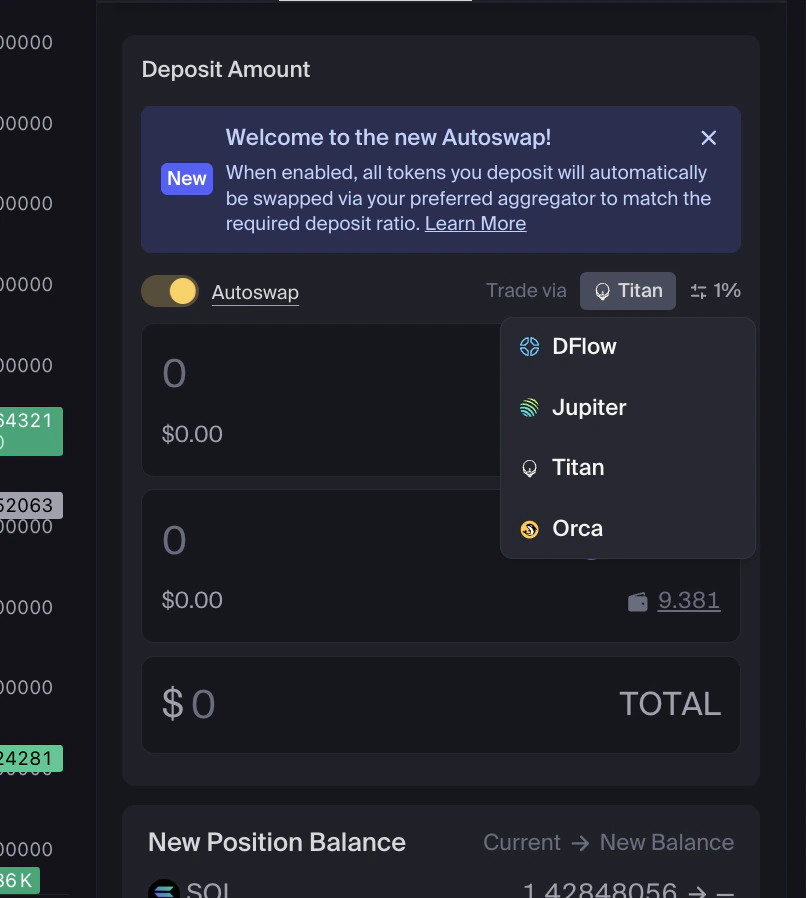
Autoswap lets you swap and deposit in a single flow when creating or adding to a liquidity position.When enabled, Autoswap can swap tokens at deposit time to help match the required deposit ratio for your selected position. The resulting tokens are then deposited into the position as part of the deposit flow.Autoswap lets you select a routing source. Titan is selected by default, and you can switch to DFlow, Jupiter, or Orca routing.
Review the quoted output, price impact, fees, slippage setting, route source, and final deposit amounts before approving any transaction.
When creating or adding to a liquidity position, enable Autoswap in the sidebar.
2
Select your route source
Autoswap uses Titan by default. You can change the selected route source to DFlow, Jupiter, or Orca routing.If routing directly through Orca pools returns a higher quoted output than the selected aggregator route, the displayed quote may use Orca routing instead. When this happens, Orca shows that the trade will route through Orca before you submit.
Select the route source you want Autoswap to use
3
Enter deposit amount
Enter how much you want to deposit. You can:
Enter an amount for one token
Enter amounts for both tokens
Enter a total combined deposit amount
Autoswap calculates the token amounts needed for the required deposit ratio.
4
Review the quote
Before depositing, review:
Route source
Quoted output
Price impact
Fees
Slippage setting
Final deposit amounts
Any estimated dust returned to your wallet
5
Deposit
Click Deposit.Orca submits the swap and deposit in a single flow using the displayed route. Any leftover dust is returned to your wallet after the transaction completes.
Autoswap combines the token swap and liquidity deposit steps into one deposit flow.
Route source selection
Select Titan, DFlow, Jupiter, or Orca routing as the route source for Autoswap.
Route visibility
Review the route source, quoted output, price impact, fees, and slippage setting before depositing.
Single deposit flow
Autoswap bundles the swap and deposit steps into one flow for the position you are creating or updating.
Default route source
Titan is selected by default. You can change the selected route source before depositing.
Orca routing
If routing directly through Orca pools returns a higher quoted output than the selected aggregator route, the displayed quote may use Orca routing instead. Orca shows the route source before you submit.
No. You can turn Autoswap off and deposit manually.
Which route sources are supported?
Autoswap currently supports Titan, DFlow, and Jupiter. You can also choose Orca routing to route directly through Orca pools.
What is the default route source?
Titan is selected by default. You can change the selected route source before depositing.
Can I change my selected route source?
Yes. You can change the selected route source before submitting the deposit.
Is Orca choosing the best quote for me?
Orca does not guarantee the best quote, best route, or best price.Autoswap shows the route source for the displayed quote. If routing directly through Orca pools returns a higher quoted output than the selected aggregator route, the displayed quote may use Orca routing instead. Review the quoted output, price impact, fees, slippage setting, route source, and final deposit amounts before approving.
Why do I sometimes receive dust?
Small residual amounts can remain after a swap due to price movement, rounding, deposit ratio requirements, or route execution. Any dust is returned to your wallet after the transaction completes.
Is Autoswap safe?
Autoswap uses transactions that you review and approve in your wallet. However, no transaction is risk-free.Swap and deposit outcomes can be affected by slippage, liquidity, price movement, route availability, fees, transaction failure, and market conditions. Always review wallet prompts before signing.