Add liquidity to an existing Orca liquidity position by depositing additional tokens.
Providing liquidity involves risk. Position outcomes can be affected by impermanent loss, token price movement, range status, slippage, fees, transaction costs, and market conditions. Review the risks before depositing.
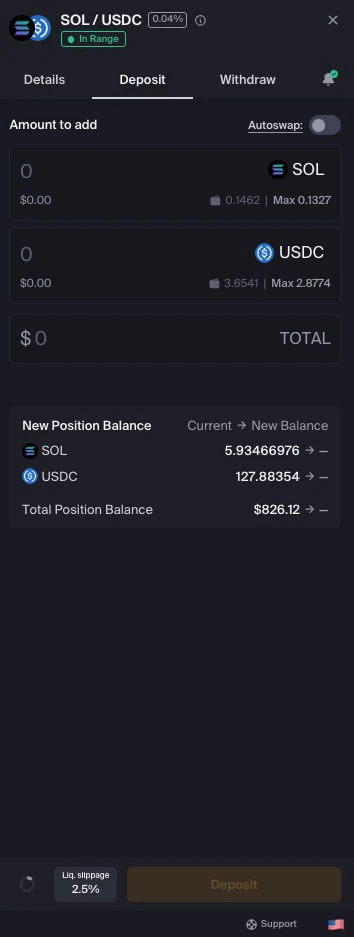
In the sidebar, ensure the Deposit tab is selected.
3
Enter deposit amounts
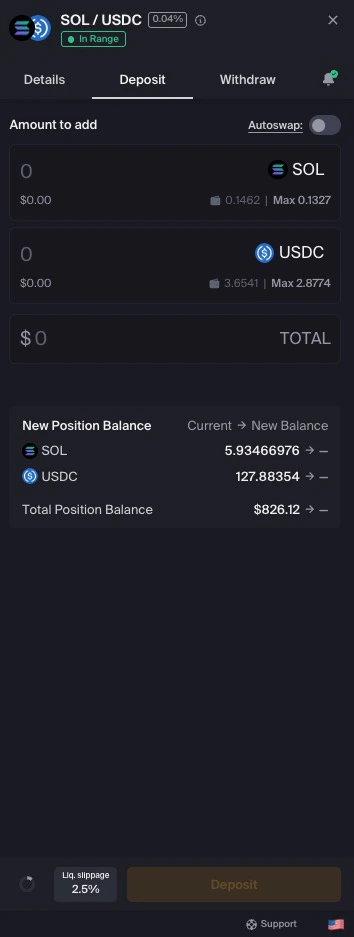
Enter the amount you want to deposit in one of the token fields.
Enter your deposit amount in either token field
The other value is calculated based on the deposit ratio required for your existing range.
Click Max to use the available quantity of a token from your wallet.
Use Max to enter the available token amount
4
Optional: use Autoswap
If your wallet does not have the token ratio required for the deposit, Autoswap may be available to adjust one token into the other.Review the quoted swap details, price impact, fees, slippage setting, and final deposit amounts before using Autoswap.
5
Optional: adjust liquidity slippage
Click the Liq. slippage button to review or adjust your slippage tolerance.See Understanding Slippage for more information.
6
Complete your deposit
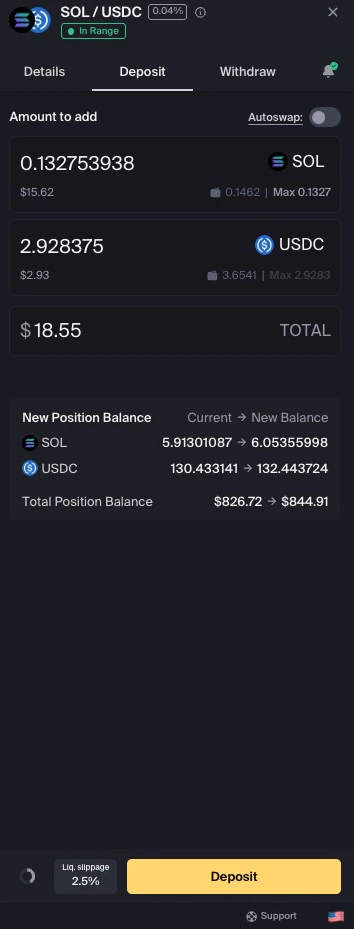
Review the deposit details and click Deposit.
Click Deposit to add liquidity to your position
7
Approve the transaction
Review the details in your wallet, including any network fees, before approving.
Review your range, deposit amounts, slippage setting, and current pool price carefully. If the pool price differs from wider market prices, or if the deposit details do not match your expectations, your position outcome may differ from expectations.