
Orca Alerts are powered by Dialect, a messaging infrastructure provider on Solana.
Why use alerts?
With concentrated liquidity, a position only accrues swap fees while the pool price is within the selected range and swaps use the position’s liquidity. When price moves outside that range:- The position stops accruing swap fees while out of range
- Token composition may become fully one-sided
- You may want to review the position details
Opening the Notifications panel
You can access alerts from anywhere on Orca using the envelope icon in the top-right corner of the navigation bar, next to your wallet.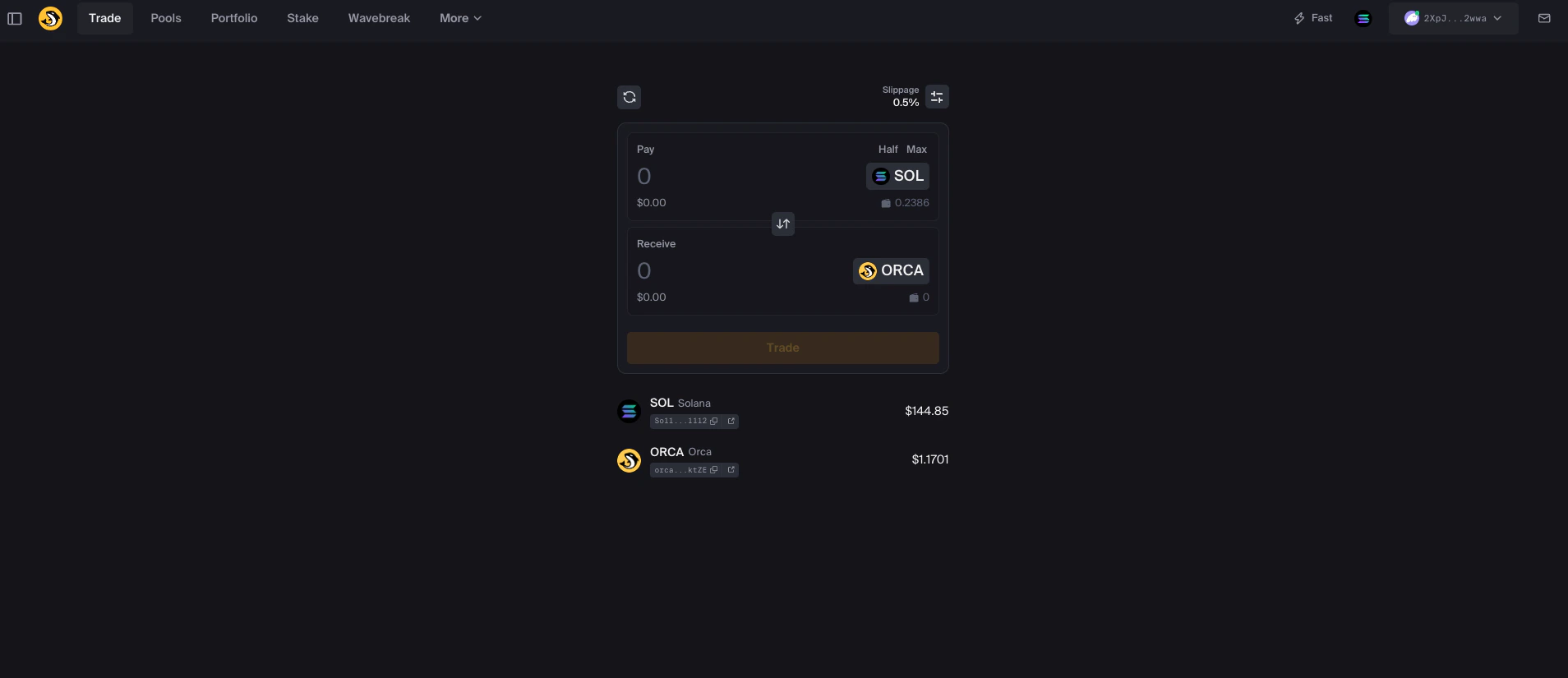
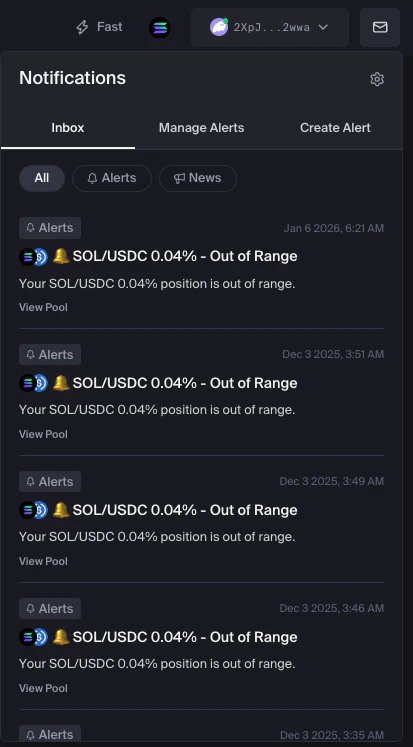
The Inbox tab shows alert notifications with timestamps and quick links
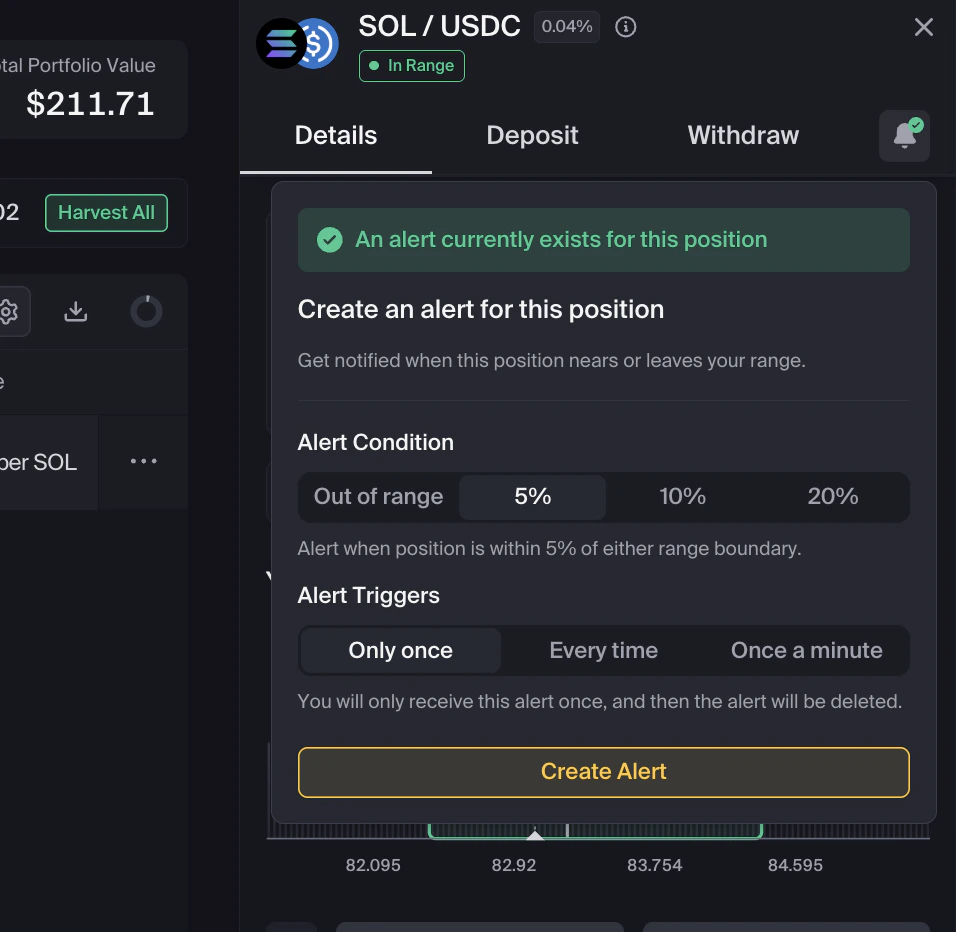
Create alerts directly from the Position Details sidebar
Creating an alert
1
Open the Create Alert tab
Click the envelope icon in the navigation bar, then select the Create Alert tab.
2
Select your position
Use the dropdown to choose the position you want to monitor. You will see the pool pair, fee tier, current range, and balance for each position.
3
Name your alert
Give your alert a nickname. By default, it uses the pool name, such as “SOL/USDC 0.04%”, but you can customize it.
4
Choose your alert condition
Pick when you want to be notified:
The 5%, 10%, and 20% options notify you before the position is out of range.
5
Set the trigger frequency
Choose how often you want to be notified:
6
Create your alert
Click Create Alert. You will see a confirmation message when the alert is created.
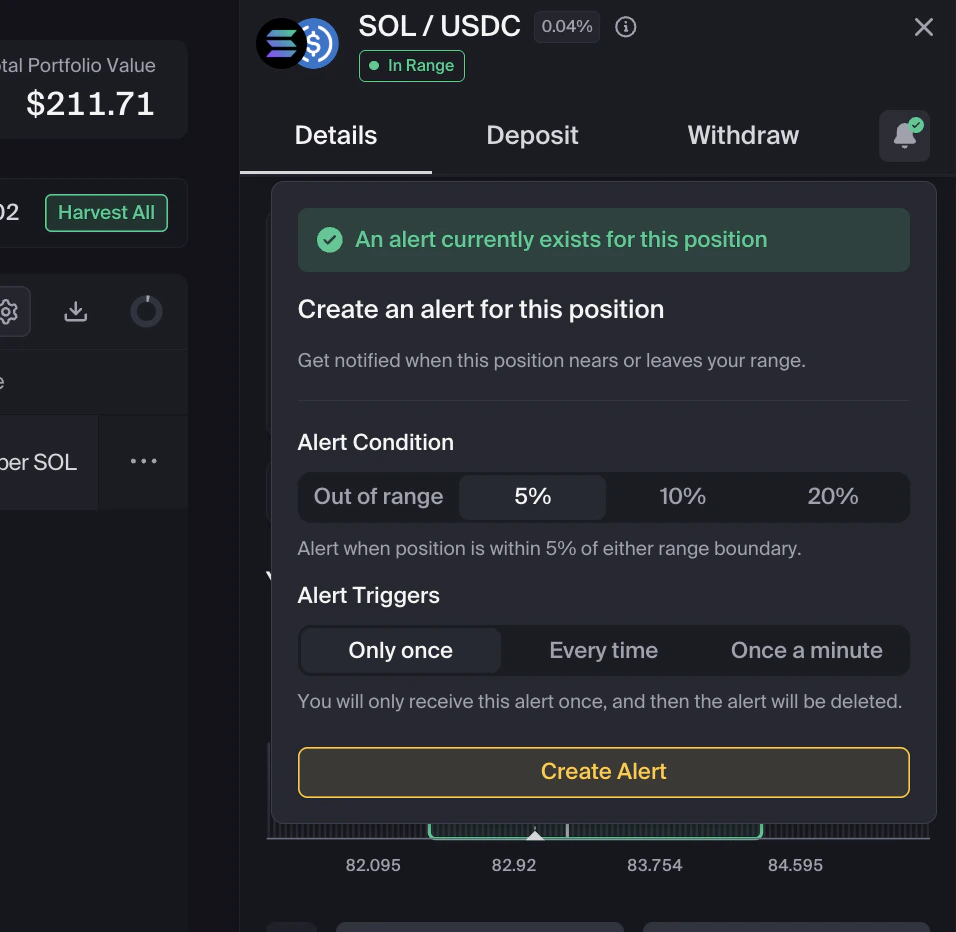
The Create Alert form with alert conditions and trigger frequencies

Alert creation confirmation message
Managing your alerts
Go to the Manage Alerts tab to view your alerts. You can filter by:- All — Every alert you have created
- Active — Alerts currently monitoring your positions
- Inactive — Alerts you have paused
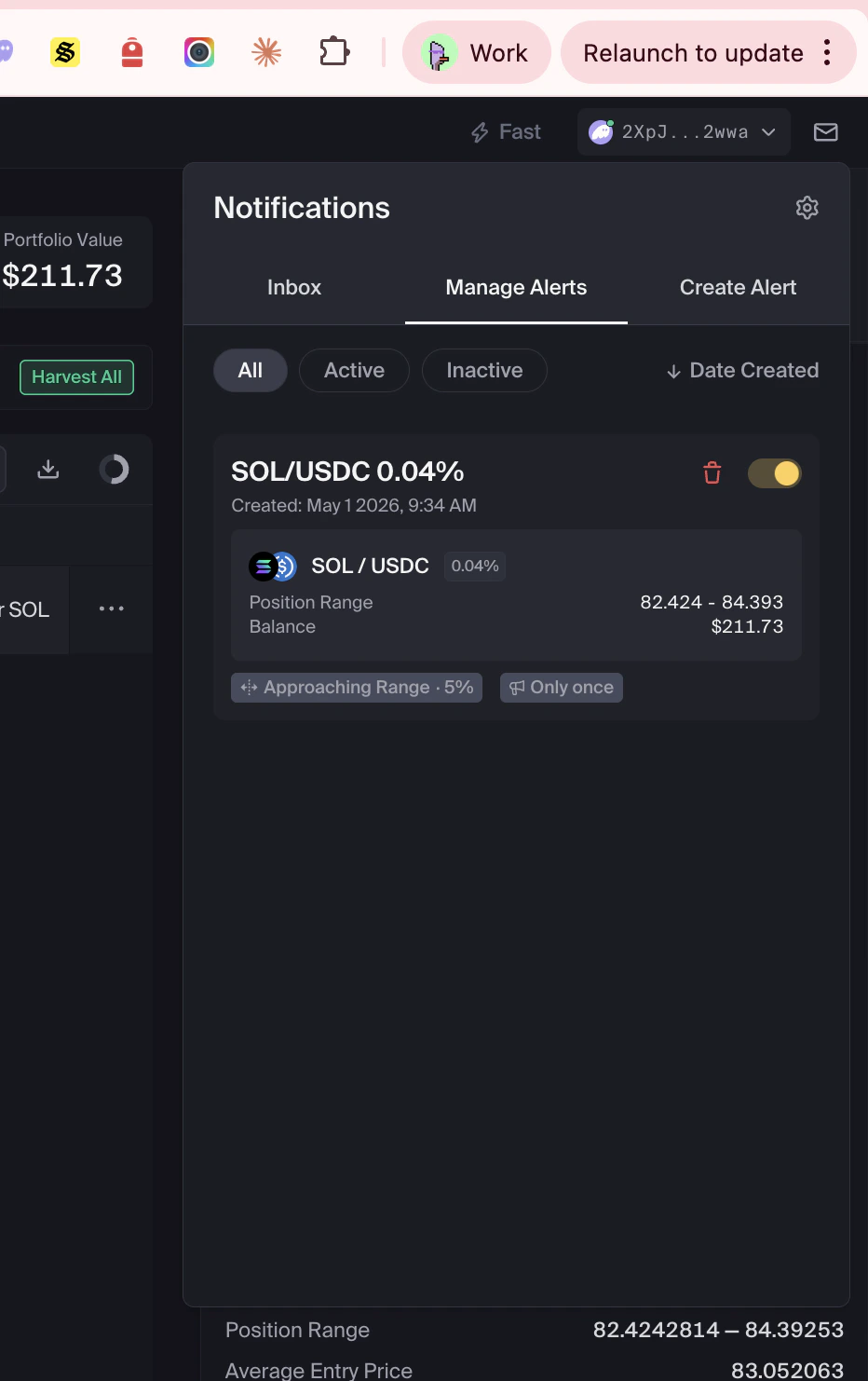
The Manage Alerts tab showing active and inactive alerts
- Alert nickname and creation date
- Pool details, including pair, fee tier, range, and balance
- Alert condition and trigger frequency
- Toggle switch to enable or disable the alert
- Delete button
Pause or resume an alert
Use the toggle switch on any alert to pause it without deleting. Toggle it back on to resume notifications.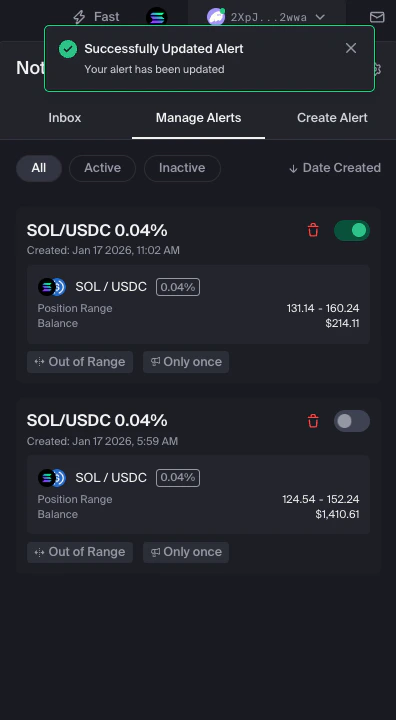
Toggle alerts on or off without deleting them
Delete an alert
Click the trash icon on any alert. You will see a confirmation prompt. Click Delete to confirm, or Cancel to keep it.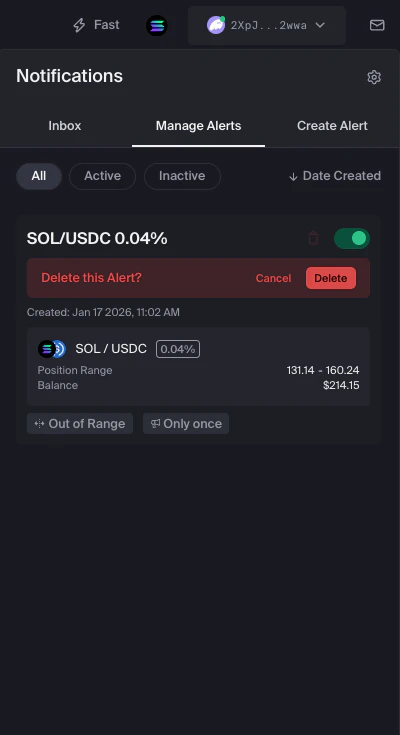
Confirm before deleting an alert
Notification settings
Click the gear icon in the Notifications panel to configure how you receive alerts.In-App
Alerts appear in your Inbox when you use Orca. This is enabled by default for your connected wallet.
Telegram
Click Connect Telegram to link your account. After connecting, subscribe to notifications in Telegram to receive alerts there.
Enter your email address and click Send Code to verify. Once confirmed, alerts can be sent to that email address.
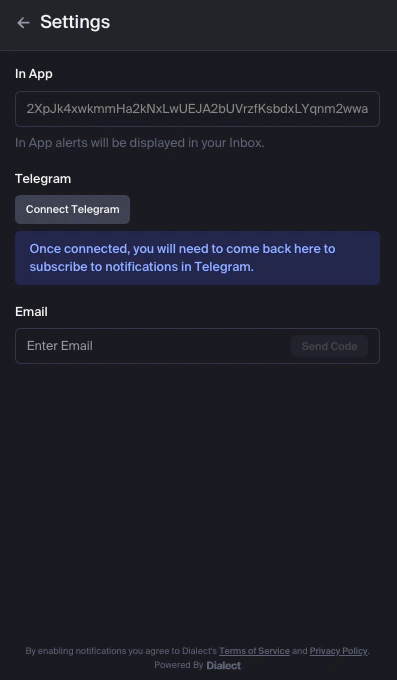
Configure notification preferences in Settings
You can enable multiple notification methods, such as in-app and Telegram notifications.
Viewing notification history
The Inbox tab shows notifications you have received. Each alert notification includes:- The pool and position that triggered it
- The alert type, such as “Out of Range”
- Timestamp of when it occurred
- A View Pool link to open the relevant pool
Alert setup considerations
Only once
Only once
Use Only once if you want one notification for a condition. After the notification is sent, the alert is automatically deleted.
Every time
Every time
Use Every time if you want to be notified each time the selected condition is met.
Once a minute
Once a minute
Use Once a minute to limit notifications while a condition persists. This can reduce repeated notifications for positions that move around a range boundary.
Notification method
Notification method
In-app notifications appear in Orca. Telegram or email notifications require connecting and verifying the relevant account.
Future alert features
Orca may add more alert types over time, such as:- New pool notifications
- Portfolio summaries
Next Steps
Portfolio Overview
Learn how to review all your positions in one place
Harvest Yield
Use the Harvest Yield function to collect accrued fees and rewards