Create concentrated liquidity positions with selected price ranges.
Custom-range positions let you allocate liquidity within selected price ranges.This can concentrate liquidity across fewer prices than a full-range position, but the position only accrues swap fees while the pool price is within your selected range and swaps use your liquidity.
Custom-range positions require understanding of impermanent loss, token composition changes, and range management. Review Impermanent Loss before creating a position.
Possible benefits
Liquidity can be concentrated within a selected range
Position range can be customized
Fees may accrue when the position is in range and used by swaps
Important considerations
Position may move out of range and stop accruing swap fees
Always verify the URL in your browser before connecting your wallet.
2
Connect your wallet
Click Connect Wallet and ensure both the Orca interface and your wallet are set to the Solana network.
3
Find your pool
Locate the pool using the list or search by token name, ticker, or mint address.
Verify that you selected the correct token by checking the mint address.
4
Open the Liquidity Terminal
Click the pool to open the Liquidity Terminal.
5
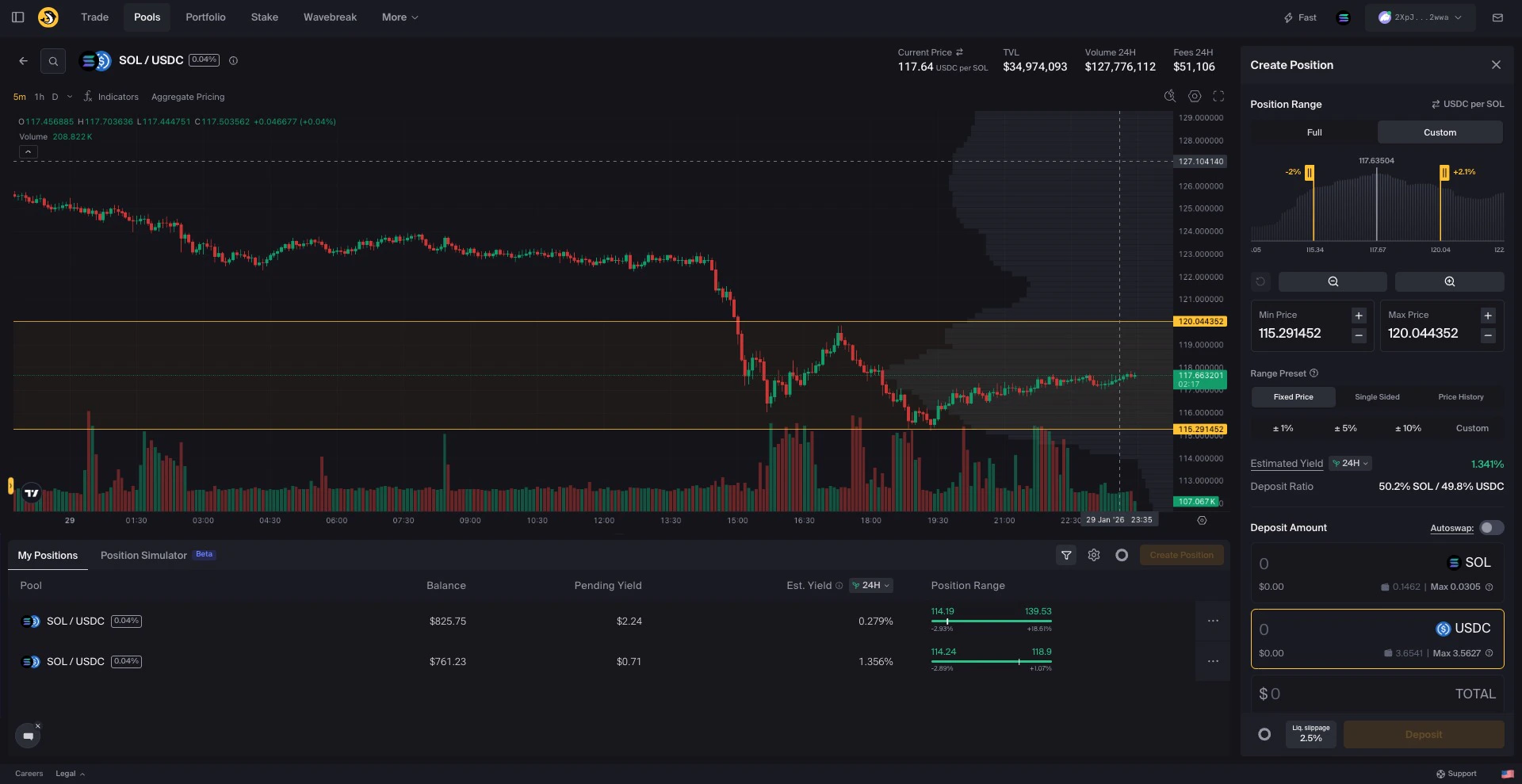
Select Custom range
In the Create Position sidebar, select Custom.
Select Custom to set your own price range
6
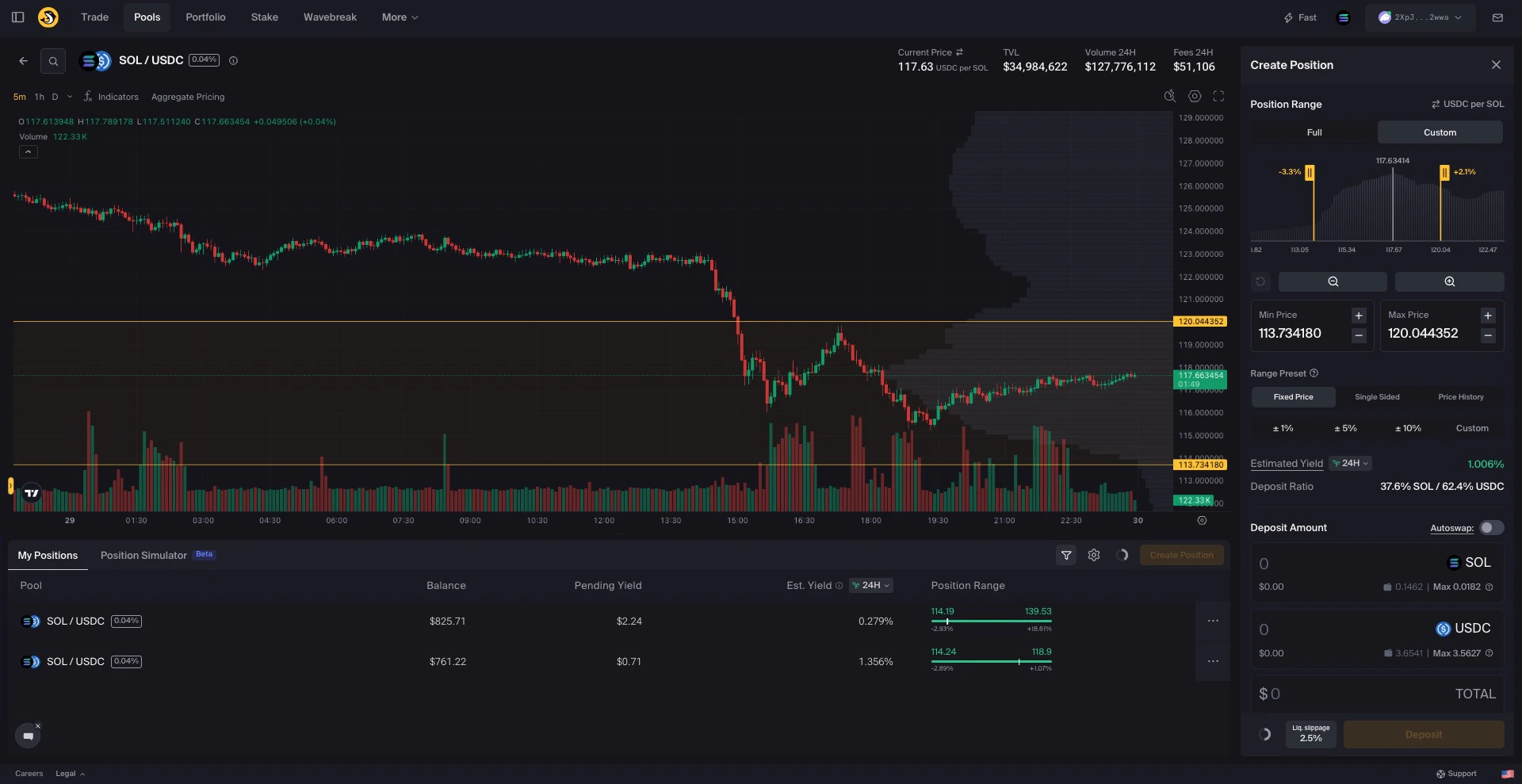
Set your price range
Define your range using any of these methods:
Drag the sliders in the sidebar
Drag range boundaries on the price chart
Select a preset, such as ±5% or ±10%
Type a custom percentage range
Enter specific prices in the lower and upper fields
Use the +/- buttons for fine adjustments
Multiple ways to set your custom range
Narrower ranges concentrate liquidity across fewer prices and may move out of range more quickly. Wider ranges spread liquidity across more prices and may require less frequent range adjustment.
7
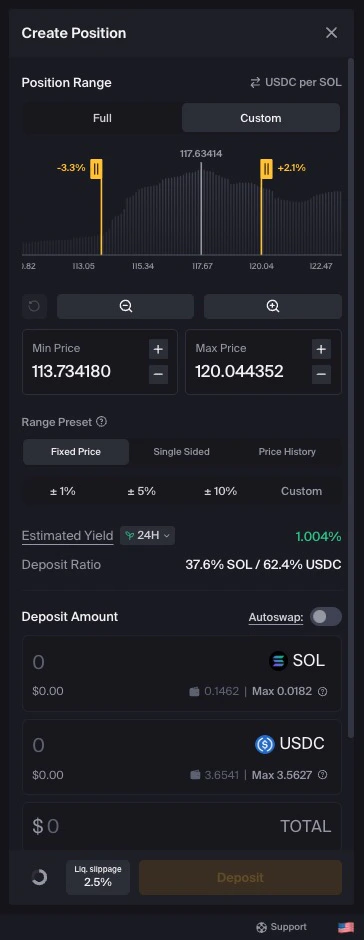
Enter deposit amounts
Enter your deposit amount in one of the token fields.
Enter your deposit amount
The other value is calculated based on your selected range and the current pool price.
If the current pool price is outside your selected range, you may only need to deposit one token. This creates a single-sided position.
Options may include:
Type a specific amount
Click Max to use your available balance
Use Autoswap to adjust token amounts for the selected position
8
Optional: adjust liquidity slippage
Click Liq. slippage to review or adjust tolerance.See Understanding Slippage for details.
9
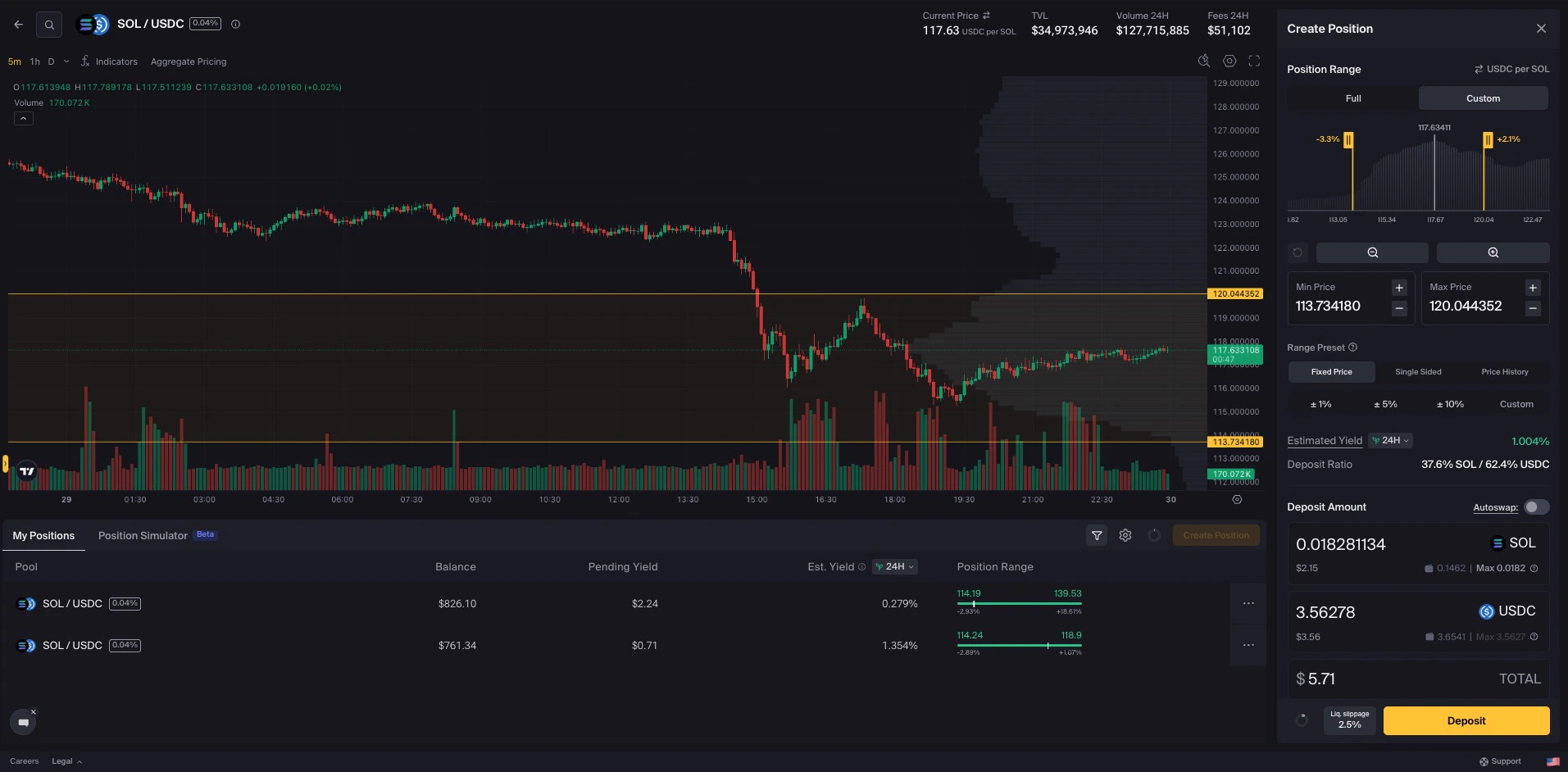
Complete your deposit
Review the position details and click Deposit.
Click Deposit to create your position
10
Approve the transaction
Review the details in your wallet before approving.
Review the selected range, deposit amounts, slippage setting, and pool price carefully. If the pool price differs from wider market prices, or if the selected range does not match your intended setup, your position outcome may differ from expectations.
Your position only accrues swap fees when the current pool price is within your selected range and swaps use your liquidity.You can review your position in Portfolio or set up alerts.
When the position is out of range
If price moves outside your selected range, the position stops accruing swap fees while out of range and becomes fully one-sided.You may choose to:
Each option has trade-offs, including transaction costs, token composition changes, and market risk.
Reviewing or adjusting a position
Some liquidity providers review or adjust positions as prices move.Adjusting a position may involve withdrawing liquidity, harvesting fees, changing token composition, selecting a new range, and paying transaction costs.
Concentrates liquidity, but may move out of range more quickly
Medium
Moderate percentage range
Balances concentration and coverage
Wide
Broader percentage range
Covers more price movement, but spreads liquidity across more prices
Range width affects liquidity concentration, time in range, token composition, fee accrual, and monitoring needs. No range width guarantees a specific outcome.
Use the Position Simulator to review estimated outcomes across different selected ranges.
{"docsConfig":{"theme":"mint","$schema":"https://mintlify.com/docs.json","name":"Orca Documentation","colors":{"primary":"#eab308","light":"#facc15","dark":"#ca8a04"},"logo":{"light":"https://mintcdn.com/orca-ccf67c1f/K618mEucxJ6w73gh/logo/orca-logo.png?fit=max\u0026auto=format\u0026n=K618mEucxJ6w73gh\u0026q=85\u0026s=cec26ca4b233cefabd14c26dff7de6cb","dark":"https://mintcdn.com/orca-ccf67c1f/K618mEucxJ6w73gh/logo/orca-logo.png?fit=max\u0026auto=format\u0026n=K618mEucxJ6w73gh\u0026q=85\u0026s=cec26ca4b233cefabd14c26dff7de6cb","href":"/#top"},"favicon":"https://mintcdn.com/orca-ccf67c1f/Qt6Coj4UiLc7yMop/favicon.png?fit=max\u0026auto=format\u0026n=Qt6Coj4UiLc7yMop\u0026q=85\u0026s=ae99b6d0d3ed2303b5454dac3d71be60","api":{"playground":{"display":"interactive"}},"appearance":{"default":"dark"},"background":{"decoration":"gradient"},"navbar":{"links":[{"icon":"rocket","href":"https://www.orca.so","label":"App"},{"icon":"message-lines","href":"https://tally.so/r/ODGQ9K","label":"Feedback"},{"icon":"life-ring","href":"/support/contact","label":"Support"}]},"footer":{"socials":{"discord":"https://discord.gg/orca-so","x":"https://twitter.com/orca_so","github":"https://github.com/orca-so","youtube":"https://www.youtube.com/@orca_so"},"links":[{"header":"Orca","items":[{"label":"Launch App","href":"https://www.orca.so"},{"label":"Terms of Service","href":"https://www.orca.so/terms"}]},{"header":"Resources","items":[{"label":"Developer Docs","href":"/developers/overview"},{"label":"Brand Assets","href":"/reference/brand"},{"label":"Docs Feedback","href":"https://tally.so/r/ODGQ9K"}]}]},"seo":{"metatags":{"og:type":"website","og:site_name":"Orca Documentation"},"indexing":"all"},"fonts":{"family":"Plus Jakarta Sans"},"styling":{"eyebrows":"section","codeblocks":"system","latex":true},"contextual":{"options":["copy"],"display":"header"},"navigation":{"languages":[{"language":"en","default":true,"href":""},{"language":"es","href":"es"},{"language":"zh","href":"zh"},{"language":"pt","href":"pt"},{"language":"ko","href":"ko"},{"language":"ja","href":"ja"},{"language":"vi","href":"vi"}]}},"deployment":{"deploymentMetadataValue":{"subdomain":"orca-ccf67c1f","hasAudioNarration":false,"actualSubdomain":"orca-ccf67c1f","customDomains":["docs.orca.so"],"gitSource":{"type":"github","owner":"orca-so","repo":"docs","deployBranch":"main","contentDirectory":"","isPrivate":true,"mountPath":"","label":""},"chroma":{"liveDeploymentHistoryId":"6ac93c847ed0dddff9a39a07","collectionId":"f7cc05a3-2eb2-4587-a4d2-7ad9066d4e3f","schemaVersion":"v3","latestBuiltDeploymentHistoryId":"6ac93c847ed0dddff9a39a07"},"feedback":{"thumbs":true},"entitlements":{"AI_CHAT":{"status":"ENABLED"},"WEB_MCP":{"status":"ENABLED"},"NARRATION":{"status":"ENABLED"}},"buildId":"6ac93c847ed0dddff9a39a07","clientVersion":"0.0.3990","searchFilterCounts":[{"language":"en","tag":"Developers","count":43},{"language":"en","tag":"Liquidity","count":25},{"language":"en","tag":"SDKs","count":21},{"language":"en","tag":"Support","count":16},{"language":"en","tag":"Governance","count":13},{"language":"en","tag":"Managing Positions","count":10},{"language":"en","tag":"Create","count":9},{"language":"en","tag":"Legacy SDK","count":9},{"language":"es","tag":"Liquidez","count":9},{"language":"ja","tag":"流動性","count":9},{"language":"ko","tag":"유동성","count":9},{"language":"pt","tag":"Liquidez","count":9},{"language":"vi","tag":"Thanh khoản","count":9},{"language":"zh","tag":"流动性","count":9},{"language":"en","tag":"Resources","count":8},{"language":"ja","tag":"取引","count":8},{"language":"ko","tag":"거래","count":8},{"language":"zh","tag":"交易","count":8},{"language":"en","tag":"Architecture","count":7},{"language":"es","tag":"Intercambiar","count":4},{"language":"es","tag":"Trading","count":4},{"language":"pt","tag":"Trocar","count":4},{"language":"pt","tag":"Negociação","count":4},{"language":"vi","tag":"Giao dịch","count":4},{"language":"vi","tag":"Giao Dịch","count":4},{"language":"es","tag":"Conceptos","count":3},{"language":"es","tag":"Primeros Pasos","count":3},{"language":"ja","tag":"コンセプト","count":3},{"language":"ja","tag":"はじめに","count":3},{"language":"ko","tag":"개념","count":3},{"language":"ko","tag":"시작하기","count":3},{"language":"pt","tag":"Conceitos","count":3},{"language":"pt","tag":"Primeiros Passos","count":3},{"language":"vi","tag":"Khái Niệm","count":3},{"language":"vi","tag":"Bắt Đầu","count":3},{"language":"zh","tag":"概念","count":3},{"language":"zh","tag":"快速上手","count":3},{"language":"es","tag":"Gestión de Posiciones","count":2},{"language":"es","tag":"Referencia","count":2},{"language":"es","tag":"Soporte","count":2},{"language":"es","tag":"Ayuda","count":2},{"language":"ja","tag":"ポジション管理","count":2},{"language":"ja","tag":"リファレンス","count":2},{"language":"ja","tag":"サポート","count":2},{"language":"ja","tag":"ヘルプ","count":2},{"language":"ko","tag":"포지션 관리","count":2},{"language":"ko","tag":"참고 자료","count":2},{"language":"ko","tag":"지원","count":2},{"language":"ko","tag":"도움말","count":2},{"language":"pt","tag":"Gerenciando Posições","count":2},{"language":"pt","tag":"Referência","count":2},{"language":"pt","tag":"Suporte","count":2},{"language":"pt","tag":"Ajuda","count":2},{"language":"vi","tag":"Quản Lý Vị Thế","count":2},{"language":"vi","tag":"Tham Khảo","count":2},{"language":"vi","tag":"Hỗ trợ","count":2},{"language":"vi","tag":"Trợ Giúp","count":2},{"language":"zh","tag":"管理持仓","count":2},{"language":"zh","tag":"参考资料","count":2},{"language":"zh","tag":"支持","count":2},{"language":"zh","tag":"帮助","count":2},{"language":"es","tag":"Inicio","count":1},{"language":"ja","tag":"ホーム","count":1},{"language":"ja","tag":"概要","count":1},{"language":"ko","tag":"홈","count":1},{"language":"ko","tag":"개요","count":1},{"language":"pt","tag":"Início","count":1},{"language":"vi","tag":"Trang chủ","count":1},{"language":"zh","tag":"主页","count":1},{"language":"zh","tag":"概览","count":1}]},"assistantConfig":{"enableAskAiButton":false,"enableStarterQuestions":false,"enableAskAiSearchBar":true},"basePath":"","hasChatPermissions":true,"hasWebMcpPermissions":true,"toggles":[{"name":"kill-isr","enabled":true,"variant":{"name":"disabled","enabled":false,"feature_enabled":true},"impressionData":false},{"name":"agent-mintlify-slack","enabled":true,"variant":{"name":"disabled","enabled":false,"feature_enabled":true},"impressionData":false},{"name":"editor-v7-file-tree","enabled":true,"variant":{"name":"disabled","enabled":false,"feature_enabled":true},"impressionData":false},{"name":"agent-integrations-settings","enabled":true,"variant":{"name":"disabled","enabled":false,"feature_enabled":true},"impressionData":false},{"name":"automations-pr-grouping","enabled":true,"variant":{"name":"disabled","enabled":false,"feature_enabled":true},"impressionData":false},{"name":"custom-prefix","enabled":true,"variant":{"name":"disabled","enabled":false,"feature_enabled":true},"impressionData":false},{"name":"analytics-v7","enabled":true,"variant":{"name":"disabled","enabled":false,"feature_enabled":true},"impressionData":false},{"name":"user-flows-analytics","enabled":true,"variant":{"name":"disabled","enabled":false,"feature_enabled":true},"impressionData":false},{"name":"no-publish-flow","enabled":true,"variant":{"name":"disabled","enabled":false,"feature_enabled":true},"impressionData":false},{"name":"workos-onboarding","enabled":true,"variant":{"name":"disabled","enabled":false,"feature_enabled":true},"impressionData":false},{"name":"llms-txt-v2","enabled":true,"variant":{"name":"disabled","enabled":false,"feature_enabled":true},"impressionData":false},{"name":"pause-universal-search-reconcile","enabled":true,"variant":{"name":"disabled","enabled":false,"feature_enabled":true},"impressionData":false},{"name":"snapshot-serving-live","enabled":true,"variant":{"name":"disabled","enabled":false,"feature_enabled":true},"impressionData":false},{"name":"stripTemperatureMiddleware","enabled":true,"variant":{"name":"disabled","enabled":false,"feature_enabled":true},"impressionData":false},{"name":"per-site-search-delta","enabled":true,"variant":{"name":"disabled","enabled":false,"feature_enabled":true},"impressionData":false},{"name":"support-platform-pylon-zendesk","enabled":true,"variant":{"name":"disabled","enabled":false,"feature_enabled":true},"impressionData":false},{"name":"snapshot-serving","enabled":true,"variant":{"name":"disabled","enabled":false,"feature_enabled":true},"impressionData":false},{"name":"instant-rollback","enabled":true,"variant":{"name":"disabled","enabled":false,"feature_enabled":true},"impressionData":false},{"name":"granular-notifications-server","enabled":true,"variant":{"name":"disabled","enabled":false,"feature_enabled":true},"impressionData":false},{"name":"granular-notifications","enabled":true,"variant":{"name":"disabled","enabled":false,"feature_enabled":true},"impressionData":false},{"name":"editor-private-page-search","enabled":true,"variant":{"name":"disabled","enabled":false,"feature_enabled":true},"impressionData":false},{"name":"automations-fable","enabled":true,"variant":{"name":"disabled","enabled":false,"feature_enabled":true},"impressionData":false},{"name":"fixed-ai-action-pricing","enabled":true,"variant":{"name":"disabled","enabled":false,"feature_enabled":true},"impressionData":false},{"name":"automation-resolve-merge-conflict","enabled":true,"variant":{"name":"disabled","enabled":false,"feature_enabled":true},"impressionData":false},{"name":"scoped-publishing","enabled":true,"variant":{"name":"disabled","enabled":false,"feature_enabled":true},"impressionData":false},{"name":"mintql","enabled":true,"variant":{"name":"disabled","enabled":false,"feature_enabled":true},"impressionData":false},{"name":"page-level-analytics","enabled":true,"variant":{"name":"disabled","enabled":false,"feature_enabled":true},"impressionData":false},{"name":"editor-version-history-v2","enabled":true,"variant":{"name":"disabled","enabled":false,"feature_enabled":true},"impressionData":false},{"name":"editor-nav-generations","enabled":true,"variant":{"name":"disabled","enabled":false,"feature_enabled":true},"impressionData":false},{"name":"billing-page-v2","enabled":true,"variant":{"name":"disabled","enabled":false,"feature_enabled":true},"impressionData":false},{"name":"workspace-projects","enabled":true,"variant":{"name":"disabled","enabled":false,"feature_enabled":true},"impressionData":false},{"name":"assistant-v5","enabled":true,"variant":{"name":"disabled","enabled":false,"feature_enabled":true},"impressionData":false},{"name":"byok-sep-25","enabled":true,"variant":{"name":"disabled","enabled":false,"feature_enabled":true},"impressionData":false},{"name":"fork-pr-previews","enabled":true,"variant":{"name":"disabled","enabled":false,"feature_enabled":true},"impressionData":false},{"name":"revalidation-jwt","enabled":true,"variant":{"name":"disabled","enabled":false,"feature_enabled":true},"impressionData":false},{"name":"vite-origin","enabled":true,"variant":{"name":"disabled","enabled":false,"feature_enabled":true},"impressionData":false},{"name":"editor-agent-model-picker","enabled":true,"variant":{"name":"disabled","enabled":false,"feature_enabled":true},"impressionData":false},{"name":"billing-updated-9-15","enabled":true,"variant":{"name":"disabled","enabled":false,"feature_enabled":true},"impressionData":false},{"name":"workos-sso-scim","enabled":true,"variant":{"name":"disabled","enabled":false,"feature_enabled":true},"impressionData":false},{"name":"hobby-abuse-scan","enabled":true,"variant":{"name":"disabled","enabled":false,"feature_enabled":true},"impressionData":false},{"name":"dashboard-inbox","enabled":true,"variant":{"name":"disabled","enabled":false,"feature_enabled":true},"impressionData":false},{"name":"workos-signup","enabled":true,"variant":{"name":"disabled","enabled":false,"feature_enabled":true},"impressionData":false},{"name":"workos-enabled","enabled":true,"variant":{"name":"disabled","enabled":false,"feature_enabled":true},"impressionData":false}],"isAtlas":false,"googleFontsInlined":true},"customCss":[{"filePath":"custom.css","content":"@keyframes float{0%,to{transform:translateY(0)}50%{transform:translateY(-20px)}}@keyframes float-delayed{0%,to{transform:translateY(0)}50%{transform:translateY(-15px)}}:root{--orca-hero-default:#eab308;--orca-hero-hover:#facc15;--orca-hero-active:#d4a306;--orca-hero-pressed:#ca8a04;--orca-hero-inverse:#1c1917;--orca-surface-bg:#0c0d0f;--orca-surface-1:#12151a;--orca-surface-2:#1a1d24;--orca-surface-3:#22262e;--orca-surface-4:#2a2f38;--orca-border-strong:#3f4451;--orca-border-light:#2a2f38;--orca-border-lighter:#22262e;--orca-error-default:#ef4444;--orca-error-hover:#f87171;--orca-success-default:#22c55e;--orca-success-hover:#4ade80;--orca-warning-default:#f59e0b;--orca-warning-hover:#fbbf24;--orca-text-primary:#f5f5f4;--orca-text-secondary:#a8a29e;--orca-text-muted:#78716c}[data-callout-type=note]{--callout-bg:rgba(234, 179, 8, 0.08);--callout-border:#eab308;--callout-icon-color:#eab308}[data-callout-type=tip]{--callout-bg:rgba(34, 197, 94, 0.08);--callout-border:#22c55e;--callout-icon-color:#22c55e}[data-callout-type=warning]{--callout-bg:rgba(245, 158, 11, 0.08);--callout-border:#f59e0b;--callout-icon-color:#f59e0b}[data-callout-type=caution],[data-callout-type=danger]{--callout-bg:rgba(239, 68, 68, 0.08);--callout-border:#ef4444;--callout-icon-color:#ef4444}[data-callout-type=info]{--callout-bg:rgba(234, 179, 8, 0.06);--callout-border:#facc15;--callout-icon-color:#facc15}[data-callout-type=check]{--callout-bg:rgba(34, 197, 94, 0.08);--callout-border:#22c55e;--callout-icon-color:#22c55e}:not(pre)>code{color:#eab308!important}::selection{background-color:rgba(234,179,8,.3)}.animate-float{animation:float 8s ease-in-out infinite}.animate-float-delayed{animation:float-delayed 10s ease-in-out infinite;animation-delay:2s}@media (prefers-reduced-motion:no-preference){@keyframes fadeInUp{0%{opacity:0;transform:translateY(10px)}to{opacity:1;transform:translateY(0)}}.animate-fade-in{animation:fadeInUp .4s ease-out forwards;opacity:0}.animate-fade-in-delay-1{animation:fadeInUp .4s ease-out .05s forwards;opacity:0}.animate-fade-in-delay-2{animation:fadeInUp .4s ease-out .1s forwards;opacity:0}}@media (prefers-reduced-motion:reduce){.animate-fade-in,.animate-fade-in-delay-1,.animate-fade-in-delay-2{animation:none;opacity:1}.animate-float,.animate-float-delayed{animation:none}}.hover-lift{transition:transform .2s ease,box-shadow .2s ease}.hover-lift:hover{transform:translateY(-2px);box-shadow:0 4px 12px rgba(0,0,0,.08)}:is(.dark .hover-lift:hover){box-shadow:0 4px 16px rgba(0,0,0,.3)}.hover-glow:hover{box-shadow:0 0 20px rgba(234,179,8,.35)}[class*=Card_card]{transition:transform .2s ease,box-shadow .2s ease}[class*=Card_card]:hover{transform:translateY(-2px)}:is(.dark [class*=\"Card_card\"]:hover){box-shadow:0 4px 16px rgba(0,0,0,.25)}.hover-lift-sm{transition:transform .15s ease}.hover-lift-sm:hover{transform:translateY(-1px)}"}],"page":{"pagePath":"liquidity/getting-started/custom-range","slug":"/liquidity/getting-started/custom-range","pageMetadata":{"title":"How to Create a Custom-Range Position","description":"Create concentrated liquidity positions with selected price ranges.","icon":"crosshairs","href":"/liquidity/getting-started/custom-range"},"description":{"compiledSource":"\"use strict\";\nconst {jsx: _jsx} = arguments[0];\nconst {useMDXComponents: _provideComponents} = arguments[0];\nfunction _createMdxContent(props) {\n const _components = {\n p: \"p\",\n ..._provideComponents(),\n ...props.components\n };\n return _jsx(_components.p, {\n children: \"Create concentrated liquidity positions with selected price ranges.\"\n });\n}\nfunction MDXContent(props = {}) {\n const {wrapper: MDXLayout} = {\n ..._provideComponents(),\n ...props.components\n };\n return MDXLayout ? _jsx(MDXLayout, {\n ...props,\n children: _jsx(_createMdxContent, {\n ...props\n })\n }) : _createMdxContent(props);\n}\nreturn {\n default: MDXContent\n};\n","frontmatter":{},"scope":{}},"pageType":"default","mdx":{"mdxSource":{"compiledSource":"\"use strict\";const{Fragment:_Fragment,jsx:_jsx,jsxs:_jsxs}=arguments[0];const{useMDXComponents:_provideComponents}=arguments[0];function _createMdxContent(props){const _components={a:`a`,hr:`hr`,li:`li`,p:`p`,strong:`strong`,tbody:`tbody`,td:`td`,th:`th`,thead:`thead`,tr:`tr`,ul:`ul`,..._provideComponents(),...props.components},{Accordion,AccordionGroup,Card,CardGroup,Frame,Heading,Info,Note,OptimizedImage,Step,Steps,Table,Tip,Warning}=_components;if(!Accordion)_missingMdxReference(`Accordion`,true);if(!AccordionGroup)_missingMdxReference(`AccordionGroup`,true);if(!Card)_missingMdxReference(`Card`,true);if(!CardGroup)_missingMdxReference(`CardGroup`,true);if(!Frame)_missingMdxReference(`Frame`,true);if(!Heading)_missingMdxReference(`Heading`,true);if(!Info)_missingMdxReference(`Info`,true);if(!Note)_missingMdxReference(`Note`,true);if(!OptimizedImage)_missingMdxReference(`OptimizedImage`,true);if(!Step)_missingMdxReference(`Step`,true);if(!Steps)_missingMdxReference(`Steps`,true);if(!Table)_missingMdxReference(`Table`,true);if(!Tip)_missingMdxReference(`Tip`,true);if(!Warning)_missingMdxReference(`Warning`,true);return _jsxs(_Fragment,{children:[_jsx(_components.p,{children:`Custom-range positions let you allocate liquidity within selected price ranges.`}),`\n`,_jsx(_components.p,{children:`This can concentrate liquidity across fewer prices than a full-range position, but the position only accrues swap fees while the pool price is within your selected range and swaps use your liquidity.`}),`\n`,_jsx(Warning,{children:_jsxs(_components.p,{children:[`Custom-range positions require understanding of impermanent loss, token composition changes, and range management. Review `,_jsx(_components.a,{href:`/liquidity/concepts/impermanent-loss`,children:`Impermanent Loss`}),` before creating a position.`]})}),`\n`,_jsxs(CardGroup,{cols:2,children:[_jsx(Card,{title:`Possible benefits`,icon:`circle-check`,children:_jsxs(_components.ul,{children:[`\n`,_jsx(_components.li,{children:`Liquidity can be concentrated within a selected range`}),`\n`,_jsx(_components.li,{children:`Position range can be customized`}),`\n`,_jsx(_components.li,{children:`Fees may accrue when the position is in range and used by swaps`}),`\n`]})}),_jsx(Card,{title:`Important considerations`,icon:`circle-xmark`,children:_jsxs(_components.ul,{children:[`\n`,_jsx(_components.li,{children:`Position may move out of range and stop accruing swap fees`}),`\n`,_jsx(_components.li,{children:`Token composition may change as price moves`}),`\n`,_jsx(_components.li,{children:`Position may require monitoring and adjustment`}),`\n`]})})]}),`\n`,_jsx(_components.hr,{}),`\n`,_jsx(Heading,{level:`2`,id:`how-to-create-a-custom-range-position`,children:`How to create a custom-range position`}),`\n`,_jsxs(Steps,{children:[_jsxs(Step,{title:`Navigate to the Pools page`,children:[_jsxs(_components.p,{children:[`Go to `,_jsx(_components.a,{href:`https://www.orca.so/pools`,children:`orca.so/pools`}),`.`]}),_jsx(Warning,{children:_jsx(_components.p,{children:`Always verify the URL in your browser before connecting your wallet.`})})]}),_jsx(Step,{title:`Connect your wallet`,children:_jsxs(_components.p,{children:[`Click `,_jsx(_components.strong,{children:`Connect Wallet`}),` and ensure both the Orca interface and your wallet are set to the Solana network.`]})}),_jsxs(Step,{title:`Find your pool`,children:[_jsx(_components.p,{children:`Locate the pool using the list or search by token name, ticker, or mint address.`}),_jsx(Tip,{children:_jsx(_components.p,{children:`Verify that you selected the correct token by checking the mint address.`})})]}),_jsx(Step,{title:`Open the Liquidity Terminal`,children:_jsx(_components.p,{children:`Click the pool to open the Liquidity Terminal.`})}),_jsxs(Step,{title:`Select Custom range`,children:[_jsxs(_components.p,{children:[`In the Create Position sidebar, select `,_jsx(_components.strong,{children:`Custom`}),`.`]}),_jsx(Frame,{caption:`Select Custom to set your own price range`,children:_jsx(OptimizedImage,{src:`https://mintcdn.com/orca-ccf67c1f/E_g5p5Y2a7M6FpUz/images/image_157.jpg?fit=max\u0026auto=format\u0026n=E_g5p5Y2a7M6FpUz\u0026q=85\u0026s=5aab49c9e41df3bf7e01587ec3b6abab`,alt:`Custom range selection`,\"data-og-width\":`1920`,width:`1920`,\"data-og-height\":`989`,height:`989`,\"data-path\":`images/image_157.jpg`,\"data-optimize\":`true`,\"data-opv\":`3`,srcset:`https://mintcdn.com/orca-ccf67c1f/E_g5p5Y2a7M6FpUz/images/image_157.jpg?w=280\u0026fit=max\u0026auto=format\u0026n=E_g5p5Y2a7M6FpUz\u0026q=85\u0026s=c8b008b1875fc382a7b09b689cff9f9e 280w, https://mintcdn.com/orca-ccf67c1f/E_g5p5Y2a7M6FpUz/images/image_157.jpg?w=560\u0026fit=max\u0026auto=format\u0026n=E_g5p5Y2a7M6FpUz\u0026q=85\u0026s=93da26021a1be608a7dcb74f6d947beb 560w, https://mintcdn.com/orca-ccf67c1f/E_g5p5Y2a7M6FpUz/images/image_157.jpg?w=840\u0026fit=max\u0026auto=format\u0026n=E_g5p5Y2a7M6FpUz\u0026q=85\u0026s=6a2bd319d23b21391c8f0e5c3598b0ad 840w, https://mintcdn.com/orca-ccf67c1f/E_g5p5Y2a7M6FpUz/images/image_157.jpg?w=1100\u0026fit=max\u0026auto=format\u0026n=E_g5p5Y2a7M6FpUz\u0026q=85\u0026s=90ded7c1e67cb4506a90f970cc2f22be 1100w, https://mintcdn.com/orca-ccf67c1f/E_g5p5Y2a7M6FpUz/images/image_157.jpg?w=1650\u0026fit=max\u0026auto=format\u0026n=E_g5p5Y2a7M6FpUz\u0026q=85\u0026s=1303bb7b2138ca02b87efb08b05fa894 1650w, https://mintcdn.com/orca-ccf67c1f/E_g5p5Y2a7M6FpUz/images/image_157.jpg?w=2500\u0026fit=max\u0026auto=format\u0026n=E_g5p5Y2a7M6FpUz\u0026q=85\u0026s=c64a5af2f68555f848f4e80ab402cbd9 2500w`})})]}),_jsxs(Step,{title:`Set your price range`,children:[_jsx(_components.p,{children:`Define your range using any of these methods:`}),_jsxs(_components.ul,{children:[`\n`,_jsx(_components.li,{children:`Drag the sliders in the sidebar`}),`\n`,_jsx(_components.li,{children:`Drag range boundaries on the price chart`}),`\n`,_jsx(_components.li,{children:`Select a preset, such as ±5% or ±10%`}),`\n`,_jsx(_components.li,{children:`Type a custom percentage range`}),`\n`,_jsx(_components.li,{children:`Enter specific prices in the lower and upper fields`}),`\n`,_jsx(_components.li,{children:`Use the +/- buttons for fine adjustments`}),`\n`]}),_jsx(Frame,{caption:`Multiple ways to set your custom range`,children:_jsx(OptimizedImage,{src:`https://mintcdn.com/orca-ccf67c1f/E_g5p5Y2a7M6FpUz/images/image_158.jpg?fit=max\u0026auto=format\u0026n=E_g5p5Y2a7M6FpUz\u0026q=85\u0026s=f8338701d04280a3b71fb867f4694670`,alt:`Range adjustment options`,\"data-og-width\":`1920`,width:`1920`,\"data-og-height\":`989`,height:`989`,\"data-path\":`images/image_158.jpg`,\"data-optimize\":`true`,\"data-opv\":`3`,srcset:`https://mintcdn.com/orca-ccf67c1f/E_g5p5Y2a7M6FpUz/images/image_158.jpg?w=280\u0026fit=max\u0026auto=format\u0026n=E_g5p5Y2a7M6FpUz\u0026q=85\u0026s=4177a997f6f447580828819b4ef06c48 280w, https://mintcdn.com/orca-ccf67c1f/E_g5p5Y2a7M6FpUz/images/image_158.jpg?w=560\u0026fit=max\u0026auto=format\u0026n=E_g5p5Y2a7M6FpUz\u0026q=85\u0026s=175efc716b01552eb55240340b50cc7e 560w, https://mintcdn.com/orca-ccf67c1f/E_g5p5Y2a7M6FpUz/images/image_158.jpg?w=840\u0026fit=max\u0026auto=format\u0026n=E_g5p5Y2a7M6FpUz\u0026q=85\u0026s=6a18985290d95dfffbe17ab178cf156e 840w, https://mintcdn.com/orca-ccf67c1f/E_g5p5Y2a7M6FpUz/images/image_158.jpg?w=1100\u0026fit=max\u0026auto=format\u0026n=E_g5p5Y2a7M6FpUz\u0026q=85\u0026s=dcb6dd296245901138df4c531bcb50a9 1100w, https://mintcdn.com/orca-ccf67c1f/E_g5p5Y2a7M6FpUz/images/image_158.jpg?w=1650\u0026fit=max\u0026auto=format\u0026n=E_g5p5Y2a7M6FpUz\u0026q=85\u0026s=224c3be5dc862d2176a694bfb770f7cb 1650w, https://mintcdn.com/orca-ccf67c1f/E_g5p5Y2a7M6FpUz/images/image_158.jpg?w=2500\u0026fit=max\u0026auto=format\u0026n=E_g5p5Y2a7M6FpUz\u0026q=85\u0026s=bad60521e3f99f5d55d278a27f8957b0 2500w`})}),_jsx(Note,{children:_jsx(_components.p,{children:`Narrower ranges concentrate liquidity across fewer prices and may move out of range more quickly. Wider ranges spread liquidity across more prices and may require less frequent range adjustment.`})})]}),_jsxs(Step,{title:`Enter deposit amounts`,children:[_jsx(_components.p,{children:`Enter your deposit amount in one of the token fields.`}),_jsx(Frame,{caption:`Enter your deposit amount`,children:_jsx(OptimizedImage,{src:`https://mintcdn.com/orca-ccf67c1f/E_g5p5Y2a7M6FpUz/images/image_159.jpg?fit=max\u0026auto=format\u0026n=E_g5p5Y2a7M6FpUz\u0026q=85\u0026s=10a7875a4433e9f36e0cede9ab0dea27`,alt:`Deposit amount entry`,\"data-og-width\":`364`,width:`364`,\"data-og-height\":`940`,height:`940`,\"data-path\":`images/image_159.jpg`,\"data-optimize\":`true`,\"data-opv\":`3`,srcset:`https://mintcdn.com/orca-ccf67c1f/E_g5p5Y2a7M6FpUz/images/image_159.jpg?w=280\u0026fit=max\u0026auto=format\u0026n=E_g5p5Y2a7M6FpUz\u0026q=85\u0026s=6c840721215193f550d4f671903c36e7 280w, https://mintcdn.com/orca-ccf67c1f/E_g5p5Y2a7M6FpUz/images/image_159.jpg?w=560\u0026fit=max\u0026auto=format\u0026n=E_g5p5Y2a7M6FpUz\u0026q=85\u0026s=7743ac8efd96675e0c0c1faadec94f4e 560w, https://mintcdn.com/orca-ccf67c1f/E_g5p5Y2a7M6FpUz/images/image_159.jpg?w=840\u0026fit=max\u0026auto=format\u0026n=E_g5p5Y2a7M6FpUz\u0026q=85\u0026s=0fc7e4e2018f933e846b3acfa4364cba 840w, https://mintcdn.com/orca-ccf67c1f/E_g5p5Y2a7M6FpUz/images/image_159.jpg?w=1100\u0026fit=max\u0026auto=format\u0026n=E_g5p5Y2a7M6FpUz\u0026q=85\u0026s=f72eb9fac54035faa681515713e46ad9 1100w, https://mintcdn.com/orca-ccf67c1f/E_g5p5Y2a7M6FpUz/images/image_159.jpg?w=1650\u0026fit=max\u0026auto=format\u0026n=E_g5p5Y2a7M6FpUz\u0026q=85\u0026s=b2b960ed0986d02e65dc266caa320b4e 1650w, https://mintcdn.com/orca-ccf67c1f/E_g5p5Y2a7M6FpUz/images/image_159.jpg?w=2500\u0026fit=max\u0026auto=format\u0026n=E_g5p5Y2a7M6FpUz\u0026q=85\u0026s=17e5620b97d836971e14cc3c4b152f6a 2500w`})}),_jsx(_components.p,{children:`The other value is calculated based on your selected range and the current pool price.`}),_jsx(Note,{children:_jsx(_components.p,{children:`If the current pool price is outside your selected range, you may only need to deposit one token. This creates a single-sided position.`})}),_jsx(_components.p,{children:`Options may include:`}),_jsxs(_components.ul,{children:[`\n`,_jsx(_components.li,{children:`Type a specific amount`}),`\n`,_jsxs(_components.li,{children:[`Click `,_jsx(_components.strong,{children:`Max`}),` to use your available balance`]}),`\n`,_jsxs(_components.li,{children:[`Use `,_jsx(_components.strong,{children:`Autoswap`}),` to adjust token amounts for the selected position`]}),`\n`]})]}),_jsxs(Step,{title:`Optional: adjust liquidity slippage`,children:[_jsxs(_components.p,{children:[`Click `,_jsx(_components.strong,{children:`Liq. slippage`}),` to review or adjust tolerance.`]}),_jsxs(_components.p,{children:[`See `,_jsx(_components.a,{href:`/trade/slippage`,children:`Understanding Slippage`}),` for details.`]})]}),_jsxs(Step,{title:`Complete your deposit`,children:[_jsxs(_components.p,{children:[`Review the position details and click `,_jsx(_components.strong,{children:`Deposit`}),`.`]}),_jsx(Frame,{caption:`Click Deposit to create your position`,children:_jsx(OptimizedImage,{src:`https://mintcdn.com/orca-ccf67c1f/E_g5p5Y2a7M6FpUz/images/image_160.jpg?fit=max\u0026auto=format\u0026n=E_g5p5Y2a7M6FpUz\u0026q=85\u0026s=8a915cec76982db2ed7bbcd702ad0e9a`,alt:`Deposit confirmation`,\"data-og-width\":`1913`,width:`1913`,\"data-og-height\":`942`,height:`942`,\"data-path\":`images/image_160.jpg`,\"data-optimize\":`true`,\"data-opv\":`3`,srcset:`https://mintcdn.com/orca-ccf67c1f/E_g5p5Y2a7M6FpUz/images/image_160.jpg?w=280\u0026fit=max\u0026auto=format\u0026n=E_g5p5Y2a7M6FpUz\u0026q=85\u0026s=1d8da9daacf294c4d4a98893ca489741 280w, https://mintcdn.com/orca-ccf67c1f/E_g5p5Y2a7M6FpUz/images/image_160.jpg?w=560\u0026fit=max\u0026auto=format\u0026n=E_g5p5Y2a7M6FpUz\u0026q=85\u0026s=d2ba78606aa404e43b48d8926785acab 560w, https://mintcdn.com/orca-ccf67c1f/E_g5p5Y2a7M6FpUz/images/image_160.jpg?w=840\u0026fit=max\u0026auto=format\u0026n=E_g5p5Y2a7M6FpUz\u0026q=85\u0026s=dce9d437130dd1fe2e902c40099bcaf3 840w, https://mintcdn.com/orca-ccf67c1f/E_g5p5Y2a7M6FpUz/images/image_160.jpg?w=1100\u0026fit=max\u0026auto=format\u0026n=E_g5p5Y2a7M6FpUz\u0026q=85\u0026s=37146372fda57b3f3fbad58ced8d3cfa 1100w, https://mintcdn.com/orca-ccf67c1f/E_g5p5Y2a7M6FpUz/images/image_160.jpg?w=1650\u0026fit=max\u0026auto=format\u0026n=E_g5p5Y2a7M6FpUz\u0026q=85\u0026s=4ad63581d4a963a27cfa7c0101238eb8 1650w, https://mintcdn.com/orca-ccf67c1f/E_g5p5Y2a7M6FpUz/images/image_160.jpg?w=2500\u0026fit=max\u0026auto=format\u0026n=E_g5p5Y2a7M6FpUz\u0026q=85\u0026s=18589fca3e681f00d7cdfc8cacf9ac2d 2500w`})})]}),_jsxs(Step,{title:`Approve the transaction`,children:[_jsx(_components.p,{children:`Review the details in your wallet before approving.`}),_jsx(Warning,{children:_jsx(_components.p,{children:`Review the selected range, deposit amounts, slippage setting, and pool price carefully. If the pool price differs from wider market prices, or if the selected range does not match your intended setup, your position outcome may differ from expectations.`})})]})]}),`\n`,_jsx(_components.hr,{}),`\n`,_jsx(Heading,{level:`2`,id:`after-creating-your-position`,children:`After creating your position`}),`\n`,_jsx(Info,{children:_jsxs(_components.p,{children:[`Your wallet receives a `,_jsx(_components.strong,{children:`position NFT`}),` that represents your liquidity position. The NFT displays “`,_jsx(_components.strong,{children:`DO NOT BURN`}),`”.`]})}),`\n`,_jsxs(Warning,{children:[_jsx(_components.p,{children:_jsx(_components.strong,{children:`Protect your position NFT:`})}),_jsxs(_components.ul,{children:[`\n`,_jsx(_components.li,{children:`Do not sell or burn this NFT. It represents ownership of your liquidity position.`}),`\n`,_jsx(_components.li,{children:`Orca cannot recover liquidity if the position NFT is burned or transferred away.`}),`\n`]})]}),`\n`,_jsx(_components.hr,{}),`\n`,_jsx(Heading,{level:`2`,id:`managing-your-custom-range-position`,children:`Managing your custom-range position`}),`\n`,_jsx(_components.p,{children:`Custom-range positions may require monitoring.`}),`\n`,_jsxs(AccordionGroup,{children:[_jsxs(Accordion,{title:`Monitor in-range status`,id:`monitor-in-range-status`,children:[_jsx(_components.p,{children:`Your position only accrues swap fees when the current pool price is within your selected range and swaps use your liquidity.`}),_jsxs(_components.p,{children:[`You can review your position in `,_jsx(_components.a,{href:`https://www.orca.so/portfolio`,children:`Portfolio`}),` or set up `,_jsx(_components.a,{href:`/liquidity/manage/alerts`,children:`alerts`}),`.`]})]}),_jsxs(Accordion,{title:`When the position is out of range`,id:`when-the-position-is-out-of-range`,children:[_jsx(_components.p,{children:`If price moves outside your selected range, the position stops accruing swap fees while out of range and becomes fully one-sided.`}),_jsx(_components.p,{children:`You may choose to:`}),_jsxs(_components.ul,{children:[`\n`,_jsx(_components.li,{children:`Leave the position as-is`}),`\n`,_jsx(_components.li,{children:`Withdraw the position`}),`\n`,_jsx(_components.li,{children:`Create a new position with a different range`}),`\n`,_jsxs(_components.li,{children:[`Use the position as a `,_jsx(_components.a,{href:`/trade/range-orders`,children:`range-order-style position`})]}),`\n`]}),_jsx(_components.p,{children:`Each option has trade-offs, including transaction costs, token composition changes, and market risk.`})]}),_jsxs(Accordion,{title:`Reviewing or adjusting a position`,id:`reviewing-or-adjusting-a-position`,children:[_jsx(_components.p,{children:`Some liquidity providers review or adjust positions as prices move.`}),_jsx(_components.p,{children:`Adjusting a position may involve withdrawing liquidity, harvesting fees, changing token composition, selecting a new range, and paying transaction costs.`})]})]}),`\n`,_jsx(_components.hr,{}),`\n`,_jsx(Heading,{level:`2`,id:`choosing-your-range`,children:`Choosing your range`}),`\n`,_jsxs(Table,{children:[_jsx(_components.thead,{children:_jsxs(_components.tr,{children:[_jsx(_components.th,{children:`Range type`}),_jsx(_components.th,{children:`Range width`}),_jsx(_components.th,{children:`Considerations`})]})}),_jsxs(_components.tbody,{children:[_jsxs(_components.tr,{children:[_jsx(_components.td,{children:_jsx(_components.strong,{children:`Narrow`})}),_jsx(_components.td,{children:`Smaller percentage range`}),_jsx(_components.td,{children:`Concentrates liquidity, but may move out of range more quickly`})]}),_jsxs(_components.tr,{children:[_jsx(_components.td,{children:_jsx(_components.strong,{children:`Medium`})}),_jsx(_components.td,{children:`Moderate percentage range`}),_jsx(_components.td,{children:`Balances concentration and coverage`})]}),_jsxs(_components.tr,{children:[_jsx(_components.td,{children:_jsx(_components.strong,{children:`Wide`})}),_jsx(_components.td,{children:`Broader percentage range`}),_jsx(_components.td,{children:`Covers more price movement, but spreads liquidity across more prices`})]})]})]}),`\n`,_jsx(Info,{children:_jsx(_components.p,{children:`Range width affects liquidity concentration, time in range, token composition, fee accrual, and monitoring needs. No range width guarantees a specific outcome.`})}),`\n`,_jsx(Tip,{children:_jsxs(_components.p,{children:[`Use the `,_jsx(_components.a,{href:`/liquidity/advanced/simulator`,children:`Position Simulator`}),` to review estimated outcomes across different selected ranges.`]})}),`\n`,_jsx(_components.hr,{}),`\n`,_jsx(Heading,{level:`2`,id:`next-steps`,children:`Next Steps`}),`\n`,_jsxs(CardGroup,{cols:2,children:[_jsx(Card,{title:`Manage Portfolio`,icon:`chart-pie`,href:`/liquidity/manage/portfolio`,children:_jsx(_components.p,{children:`Review and manage your positions`})}),_jsx(Card,{title:`Position Simulator`,icon:`chart-line`,href:`/liquidity/advanced/simulator`,children:_jsx(_components.p,{children:`Review estimated outcomes`})}),_jsx(Card,{title:`Position Alerts`,icon:`bell`,href:`/liquidity/manage/alerts`,children:_jsx(_components.p,{children:`Get notified when selected conditions occur`})}),_jsx(Card,{title:`Liquidity Position Concepts`,icon:`lightbulb`,href:`/liquidity/concepts`,children:_jsx(_components.p,{children:`Learn key liquidity position concepts`})})]})]})}function MDXContent(props={}){const{wrapper:MDXLayout}={..._provideComponents(),...props.components};return MDXLayout?_jsx(MDXLayout,{...props,children:_jsx(_createMdxContent,{...props})}):_createMdxContent(props)}return{default:MDXContent};function _missingMdxReference(id,component){throw new Error(`Expected `+(component?`component`:`object`)+\" `\"+id+\"` to be defined: you likely forgot to import, pass, or provide it.\")}","frontmatter":{},"scope":{"codeStyling":"system","config":{},"pageMetadata":{"title":"How to Create a Custom-Range Position","description":"Create concentrated liquidity positions with selected price ranges.","icon":"crosshairs","href":"/liquidity/getting-started/custom-range"}}},"mdxSourceWithNoJs":null},"mdxExtracts":{"tableOfContents":[{"title":"How to create a custom-range position","slug":"how-to-create-a-custom-range-position","depth":2,"children":[]},{"title":"After creating your position","slug":"after-creating-your-position","depth":2,"children":[]},{"title":"Managing your custom-range position","slug":"managing-your-custom-range-position","depth":2,"children":[]},{"title":"Choosing your range","slug":"choosing-your-range","depth":2,"children":[]},{"title":"Next Steps","slug":"next-steps","depth":2,"children":[]}],"codeExamples":{}},"jsLinks":[],"subdomain":"orca-ccf67c1f","siteName":"Orca Documentation","title":"How to Create a Custom-Range Position - Orca Documentation","navMaps":{"firstHrefInVersion":{},"firstHrefInLanguage":{"en":{"href":"/liquidity/getting-started/custom-range","matchLevel":0},"es":{"href":"/es/liquidity/getting-started/custom-range","matchLevel":1},"zh":{"href":"/zh/liquidity/getting-started/custom-range","matchLevel":1},"pt":{"href":"/pt/liquidity/getting-started/custom-range","matchLevel":1},"ko":{"href":"/ko/liquidity/getting-started/custom-range","matchLevel":1},"ja":{"href":"/ja/liquidity/getting-started/custom-range","matchLevel":1},"vi":{"href":"/vi/liquidity/getting-started/custom-range","matchLevel":1}}},"lastModified":"2026-05-25T13:56:28.679Z","originalFileLocation":"liquidity/getting-started/custom-range.md","locale":"en"},"headHtml":"\u003cscript data-mint-head>(function(){var d=document.documentElement,p=null;if(!p){try{p=localStorage.getItem(\"isDarkMode\")}catch(e){}if(p==='true')p='dark';else if(p==='false')p='light';if(p!=='light'\u0026\u0026p!=='dark'\u0026\u0026p!=='system')p=\"dark\"}var r=p==='system'?(matchMedia(\"(prefers-color-scheme: dark)\").matches?'dark':'light'):p;d.classList.remove(r==='dark'?'light':'dark');d.classList.add(r);d.setAttribute(\"data-theme-preference\",p)})();\u003c/script>\u003cmeta data-mint-head name=\"description\" content=\"Create concentrated liquidity positions with selected price ranges.\">\u003cmeta data-mint-head name=\"application-name\" content=\"Orca Documentation\">\u003cmeta data-mint-head name=\"generator\" content=\"Mintlify\">\u003clink data-mint-head rel=\"icon\" type=\"image/png\" sizes=\"192x192\" href=\"/mintlify-assets/_mintlify/favicons/orca-ccf67c1f/6WJ4EVe1zuJVD1ah/_generated/favicon/android-chrome-192x192.png\" media=\"(prefers-color-scheme: light)\">\u003clink data-mint-head rel=\"apple-touch-icon\" type=\"image/png\" sizes=\"180x180\" href=\"/mintlify-assets/_mintlify/favicons/orca-ccf67c1f/6WJ4EVe1zuJVD1ah/_generated/favicon/apple-touch-icon.png\">\u003clink data-mint-head rel=\"icon\" type=\"image/png\" sizes=\"16x16\" href=\"/mintlify-assets/_mintlify/favicons/orca-ccf67c1f/6WJ4EVe1zuJVD1ah/_generated/favicon/favicon-16x16.png\" media=\"(prefers-color-scheme: light)\">\u003clink data-mint-head rel=\"icon\" type=\"image/png\" sizes=\"32x32\" href=\"/mintlify-assets/_mintlify/favicons/orca-ccf67c1f/6WJ4EVe1zuJVD1ah/_generated/favicon/favicon-32x32.png\" media=\"(prefers-color-scheme: light)\">\u003clink data-mint-head rel=\"shortcut icon\" type=\"image/x-icon\" href=\"/mintlify-assets/_mintlify/favicons/orca-ccf67c1f/6WJ4EVe1zuJVD1ah/_generated/favicon/favicon.ico\" media=\"(prefers-color-scheme: light)\">\u003clink data-mint-head rel=\"icon\" type=\"image/png\" sizes=\"192x192\" href=\"/mintlify-assets/_mintlify/favicons/orca-ccf67c1f/6WJ4EVe1zuJVD1ah/_generated/favicon-dark/android-chrome-192x192.png\" media=\"(prefers-color-scheme: dark)\">\u003clink data-mint-head rel=\"icon\" type=\"image/png\" sizes=\"16x16\" href=\"/mintlify-assets/_mintlify/favicons/orca-ccf67c1f/6WJ4EVe1zuJVD1ah/_generated/favicon-dark/favicon-16x16.png\" media=\"(prefers-color-scheme: dark)\">\u003clink data-mint-head rel=\"icon\" type=\"image/png\" sizes=\"32x32\" href=\"/mintlify-assets/_mintlify/favicons/orca-ccf67c1f/6WJ4EVe1zuJVD1ah/_generated/favicon-dark/favicon-32x32.png\" media=\"(prefers-color-scheme: dark)\">\u003clink data-mint-head rel=\"shortcut icon\" type=\"image/x-icon\" href=\"/mintlify-assets/_mintlify/favicons/orca-ccf67c1f/6WJ4EVe1zuJVD1ah/_generated/favicon-dark/favicon.ico\" media=\"(prefers-color-scheme: dark)\">\u003cmeta data-mint-head property=\"og:title\" content=\"How to Create a Custom-Range Position - Orca Documentation\">\u003cmeta data-mint-head property=\"og:description\" content=\"Create concentrated liquidity positions with selected price ranges.\">\u003cmeta data-mint-head property=\"og:site_name\" content=\"Orca Documentation\">\u003cmeta data-mint-head property=\"og:url\" content=\"https://docs.orca.so/liquidity/getting-started/custom-range\">\u003cmeta data-mint-head property=\"og:type\" content=\"website\">\u003cmeta data-mint-head property=\"og:image\" content=\"https://orca-ccf67c1f.mintlify.app/_mintlify/api/og/v2?division=Getting+Started\u0026amp;title=How+to+Create+a+Custom-Range+Position\u0026amp;description=Create+concentrated+liquidity+positions+with+selected+price+ranges.\u0026amp;theme=0c9413261d68f35932070d5c\u0026amp;signature=6e49f4874d8b1d6e4a361ce7807a433e2f3423c77cb039464abd386f92e77d4e\">\u003cmeta data-mint-head property=\"og:image:width\" content=\"1200\">\u003cmeta data-mint-head property=\"og:image:height\" content=\"630\">\u003cmeta data-mint-head name=\"twitter:card\" content=\"summary_large_image\">\u003cmeta data-mint-head name=\"twitter:title\" content=\"How to Create a Custom-Range Position - Orca Documentation\">\u003cmeta data-mint-head name=\"twitter:description\" content=\"Create concentrated liquidity positions with selected price ranges.\">\u003cmeta data-mint-head name=\"twitter:image\" content=\"https://orca-ccf67c1f.mintlify.app/_mintlify/api/og/v2?division=Getting+Started\u0026amp;title=How+to+Create+a+Custom-Range+Position\u0026amp;description=Create+concentrated+liquidity+positions+with+selected+price+ranges.\u0026amp;theme=0c9413261d68f35932070d5c\u0026amp;signature=6e49f4874d8b1d6e4a361ce7807a433e2f3423c77cb039464abd386f92e77d4e\">\u003cmeta data-mint-head name=\"twitter:image:width\" content=\"1200\">\u003cmeta data-mint-head name=\"twitter:image:height\" content=\"630\">\u003cmeta data-mint-head name=\"msapplication-config\" content=\"/mintlify-assets/_mintlify/favicons/orca-ccf67c1f/6WJ4EVe1zuJVD1ah/_generated/favicon/browserconfig.xml\">\u003cmeta data-mint-head name=\"apple-mobile-web-app-title\" content=\"Orca Documentation\">\u003cmeta data-mint-head name=\"msapplication-TileColor\" content=\"#eab308\">\u003clink data-mint-head rel=\"canonical\" href=\"https://docs.orca.so/liquidity/getting-started/custom-range\">\u003clink data-mint-head rel=\"alternate\" type=\"application/xml\" href=\"/sitemap.xml\">\u003clink data-mint-head rel=\"alternate\" type=\"text/markdown\" href=\"/liquidity/getting-started/custom-range.md\">\u003clink data-mint-head rel=\"alternate\" hreflang=\"en\" href=\"https://docs.orca.so/liquidity/getting-started/custom-range\">\u003clink data-mint-head rel=\"alternate\" hreflang=\"es\" href=\"https://docs.orca.so/es/liquidity/getting-started/custom-range\">\u003clink data-mint-head rel=\"alternate\" hreflang=\"zh\" href=\"https://docs.orca.so/zh/liquidity/getting-started/custom-range\">\u003clink data-mint-head rel=\"alternate\" hreflang=\"pt\" href=\"https://docs.orca.so/pt/liquidity/getting-started/custom-range\">\u003clink data-mint-head rel=\"alternate\" hreflang=\"ko\" href=\"https://docs.orca.so/ko/liquidity/getting-started/custom-range\">\u003clink data-mint-head rel=\"alternate\" hreflang=\"ja\" href=\"https://docs.orca.so/ja/liquidity/getting-started/custom-range\">\u003clink data-mint-head rel=\"alternate\" hreflang=\"vi\" href=\"https://docs.orca.so/vi/liquidity/getting-started/custom-range\">\u003clink data-mint-head rel=\"alternate\" hreflang=\"x-default\" href=\"https://docs.orca.so/liquidity/getting-started/custom-range\">\u003cscript data-mint-head type=\"application/ld+json\">{\"@context\":\"https://schema.org\",\"@graph\":[{\"@type\":\"Organization\",\"@id\":\"https://docs.orca.so/#organization\",\"name\":\"Orca Documentation\",\"url\":\"https://docs.orca.so\",\"logo\":{\"@type\":\"ImageObject\",\"url\":\"https://mintcdn.com/orca-ccf67c1f/K618mEucxJ6w73gh/logo/orca-logo.png?fit=max\u0026auto=format\u0026n=K618mEucxJ6w73gh\u0026q=85\u0026s=cec26ca4b233cefabd14c26dff7de6cb\"}},{\"@type\":\"WebSite\",\"@id\":\"https://docs.orca.so#website\",\"name\":\"Orca Documentation\",\"url\":\"https://docs.orca.so\",\"publisher\":{\"@id\":\"https://docs.orca.so/#organization\"}},{\"@type\":\"WebPage\",\"@id\":\"https://docs.orca.so/liquidity/getting-started/custom-range#webpage\",\"url\":\"https://docs.orca.so/liquidity/getting-started/custom-range\",\"name\":\"How to Create a Custom-Range Position\",\"description\":\"Create concentrated liquidity positions with selected price ranges.\",\"dateModified\":\"2026-05-25T13:56:28.679Z\",\"isPartOf\":{\"@id\":\"https://docs.orca.so#website\"},\"breadcrumb\":{\"@id\":\"https://docs.orca.so/liquidity/getting-started/custom-range#breadcrumb\"}},{\"@type\":\"BreadcrumbList\",\"@id\":\"https://docs.orca.so/liquidity/getting-started/custom-range#breadcrumb\",\"itemListElement\":[{\"@type\":\"ListItem\",\"position\":1,\"name\":\"Getting Started\",\"item\":\"https://docs.orca.so/liquidity/getting-started/beginner-guide\"},{\"@type\":\"ListItem\",\"position\":2,\"name\":\"How to Create a Custom-Range Position\",\"item\":\"https://docs.orca.so/liquidity/getting-started/custom-range\"}]},{\"@type\":[\"Article\",\"TechArticle\"],\"@id\":\"https://docs.orca.so/liquidity/getting-started/custom-range#article\",\"headline\":\"How to Create a Custom-Range Position\",\"name\":\"How to Create a Custom-Range Position\",\"description\":\"Create concentrated liquidity positions with selected price ranges.\",\"url\":\"https://docs.orca.so/liquidity/getting-started/custom-range\",\"mainEntityOfPage\":{\"@id\":\"https://docs.orca.so/liquidity/getting-started/custom-range#webpage\"},\"dateModified\":\"2026-05-25T13:56:28.679Z\",\"publisher\":{\"@id\":\"https://docs.orca.so/#organization\"},\"isPartOf\":{\"@id\":\"https://docs.orca.so#website\"}}]}\u003c/script>\u003cscript data-mint-head type=\"application/ld+json\">{\"@context\":\"https://schema.org\",\"@type\":\"WebSite\",\"name\":\"Orca Documentation\",\"creator\":{\"@type\":\"Organization\",\"name\":\"Mintlify\",\"url\":\"https://mintlify.com\"}}\u003c/script>","siteName":"Orca Documentation","nav":{"global":null,"languages":[{"language":"en","default":true,"tabs":[{"tab":"Home","pages":[{"title":"Home","href":""}]},{"tab":"Formation","pages":[{"title":"Formation","href":"/formation/faqs"}]},{"tab":"Liquidity","groups":[{"group":"Overview","pages":[{"title":"Providing Liquidity on Solana","icon":"droplet","href":"/liquidity/overview"},{"title":"Liquidity Terminal Overview","icon":"droplet","href":"/liquidity/terminal/overview"}]},{"group":"Getting Started","pages":[{"title":"Beginner's Guide to Liquidity","icon":"graduation-cap","href":"/liquidity/getting-started/beginner-guide"},{"title":"Is Liquidity Provision Right for Me?","icon":"scale-balanced","href":"/liquidity/getting-started/is-lp-right-for-me"},{"title":"How to Create a Full-Range Position","description":"Create a full-range liquidity position on Orca.","icon":"arrows-left-right","href":"/liquidity/getting-started/full-range"},{"title":"How to Create a Custom-Range Position","icon":"crosshairs","href":"/liquidity/getting-started/custom-range"}]},{"group":"Managing Positions","pages":[{"title":"Auto-Compound","icon":"recycle","hidden":false,"description":null,"href":"/liquidity/manage/auto-compound"},{"title":"How to Add Liquidity","icon":"plus","href":"/liquidity/manage/add"},{"title":"Autoswap","icon":"arrows-rotate","href":"/liquidity/manage/autoswap"},{"title":"How to Withdraw Liquidity","icon":"arrow-up-from-bracket","href":"/liquidity/manage/withdraw"},{"title":"How to Harvest Yield","icon":"seedling","href":"/liquidity/manage/harvest"},{"title":"How to Close a Position","icon":"xmark","href":"/liquidity/manage/close"},{"title":"Managing Your Portfolio","icon":"chart-pie","href":"/liquidity/manage/portfolio"},{"title":"Position History \u0026 PnL","icon":"clock-rotate-left","href":"/liquidity/manage/position-history"},{"title":"Position Details Sidebar","icon":"sidebar","href":"/liquidity/manage/sidebar"},{"title":"Alerts","icon":"bell-ring","href":"/liquidity/manage/alerts"}]},{"group":"Concepts","pages":[{"title":"Impermanent Loss","icon":"chart-line-down","href":"/liquidity/concepts/impermanent-loss"},{"title":"Narrow vs Wide Liquidity Ranges","icon":"arrows-left-right","href":"/liquidity/concepts/liquidity-ranges"},{"title":"Understanding Ticks, Tick Spacing, and Fee Tiers on Orca","icon":"droplet","sidebarTitle":"Understanding Ticks, Tick Spacing, an...","href":"/liquidity/concepts/ticks-and-fees"},{"title":"Trading Fees","icon":"droplet","href":"/liquidity/concepts/trading-fees"},{"title":"Adaptive Fee Pools","icon":"droplet","href":"/liquidity/concepts/adaptive-fees"}]},{"group":"Advanced","pages":[{"title":"Advanced Liquidity Position Concepts","icon":"chart-line","href":"/liquidity/advanced/strategies"},{"title":"Navigating the Price Chart Interface","icon":"droplet","href":"/liquidity/advanced/charts"},{"title":"Position Simulator","icon":"chart-line","href":"/liquidity/advanced/simulator"},{"title":"Creating a Pool Tutorial","icon":"droplet","href":"/liquidity/advanced/create-pool"}]}],"global":{"anchors":[{"anchor":"Launch App","icon":"rocket","href":"https://www.orca.so"},{"anchor":"Support","icon":"life-ring","href":"/support/contact"}]}},{"tab":"Trade","pages":[{"title":"Trade","href":"/trade/overview"}]},{"tab":"Vaults","pages":[{"title":"Vaults","href":"/vaults/overview"}]},{"tab":"Create","pages":[{"title":"Create","href":"/create/overview"}]},{"tab":"Developers","icon":"brackets-curly","pages":[{"title":"Developers","href":"/developers/overview"}]},{"tab":"API Reference","icon":"code","pages":[{"title":"API Reference","href":"/api-reference/overview"}]},{"tab":"Governance","pages":[{"title":"Governance","href":"/governance/tokenomics"}]},{"tab":"Support","pages":[{"title":"Support","href":"/support/about"}]}]},{"language":"es","pages":[{"title":"es","href":"/es/liquidity/getting-started/custom-range"}]},{"language":"zh","pages":[{"title":"zh","href":"/zh/liquidity/getting-started/custom-range"}]},{"language":"pt","pages":[{"title":"pt","href":"/pt/liquidity/getting-started/custom-range"}]},{"language":"ko","pages":[{"title":"ko","href":"/ko/liquidity/getting-started/custom-range"}]},{"language":"ja","pages":[{"title":"ja","href":"/ja/liquidity/getting-started/custom-range"}]},{"language":"vi","pages":[{"title":"vi","href":"/vi/liquidity/getting-started/custom-range"}]}]},"title":"How to Create a Custom-Range Position - Orca Documentation","buildId":"dpl_2oYXwqkEXirXBPk8wV1FtM5USFWi","deploymentId":"dpl_2oYXwqkEXirXBPk8wV1FtM5USFWi","dynamics":["07c022d89b","a74be98ba7"],"chunks":["Frame-BbYRHtLl.js","DynamicMarkdown-DN96a4Ur.js","zoom-image-lightbox-D7yRe3On.js","lightbox-handle-r17bVUz3.js"]}